Extra Credit
You can award credit to students who complete an optional assignment without penalizing students who choose not to complete it.
Learn more about extra credit columns.
Create an extra credit column
- In the Gradebook (grid view), hover your mouse in between columns until a purple (+) icon shows.
- Click "Add Item."
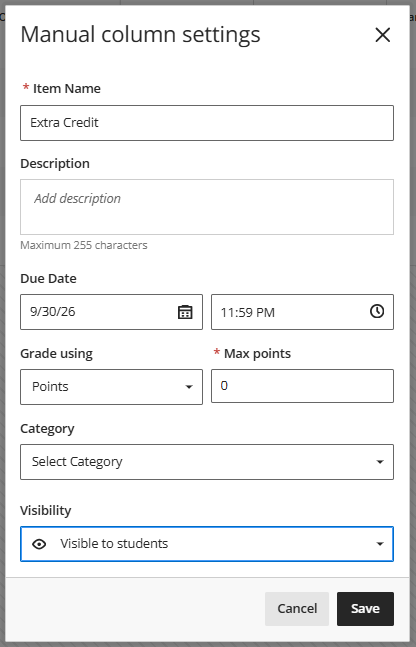
- Fill in the following:
- Item Name
- Description (if desired)
- Due date and Time
- Grade Schema (Points, Letter, etc.)
- For "Max Points," put: 0
- Assign a Category
- Select desired Visibility
- Save
Weighted extra credit
The weighted total column generates a grade based on the result of selected columns and categories, and their respective percentages. When you create a weighted column, you can include other calculated columns and other weighted columns. Your options are to add extra credit points to a category or to the overall grade.
Learn more about Extra Credit when Weighting Grades.
Create weighted Extra Credit
- Add your Extra Credit Item.
- Go into the Gradebook and select "Add Item."
- In the "New Item" panel, provide the appropriate information and name the item.
- Include 0 as the maximum points
- Save
- Create a calculation to calculate the total of all tests and tests extra credit item. Be sure to check your weighted total column and ensure that the tests total is the item that is being weighted, not the category "Tests." When you combine an extra credit column with a weighted total column, both calculate as points instead of percentages.
- In the gradebook, select the purple plus button where you want to place the column.
- Select "Add Total Calculation"
- In the "New Total Calculation" panel, provide the appropriate information.
- Include the test category and tests extra credit column.
- Select Save.
- Add extra credit points to the overall grade. Configure the overall grade calculation to add up the Weighted Total and the Extra Credit Columns.
- Go to the gradebook and select "Add Item."
- In the "New Item" panel, provide the appropriate information and name the item. Include 0 as the maximum points.
- Select Save.
Was this article helpful?
That’s Great!
Thank you for your feedback
Sorry! We couldn't be helpful
Thank you for your feedback
Feedback sent
We appreciate your effort and will try to fix the article