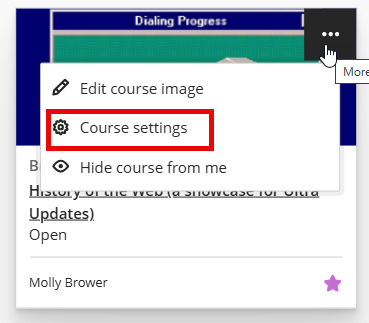
From the Courses area: If the course is closed to students, you can click the three dots to the right of the name and click Course Settings to open the Settings, where you can make your site available.
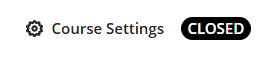
Inside the course site: In the upper-right corner of the page, you will see a button that either says OPEN or CLOSED. When it is set to OPEN, students can access the course and participate. When it is set to CLOSED, students can see the course, but cannot access it or participate.
You can click on the button or on Course Settings to open the Course Settings.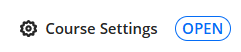
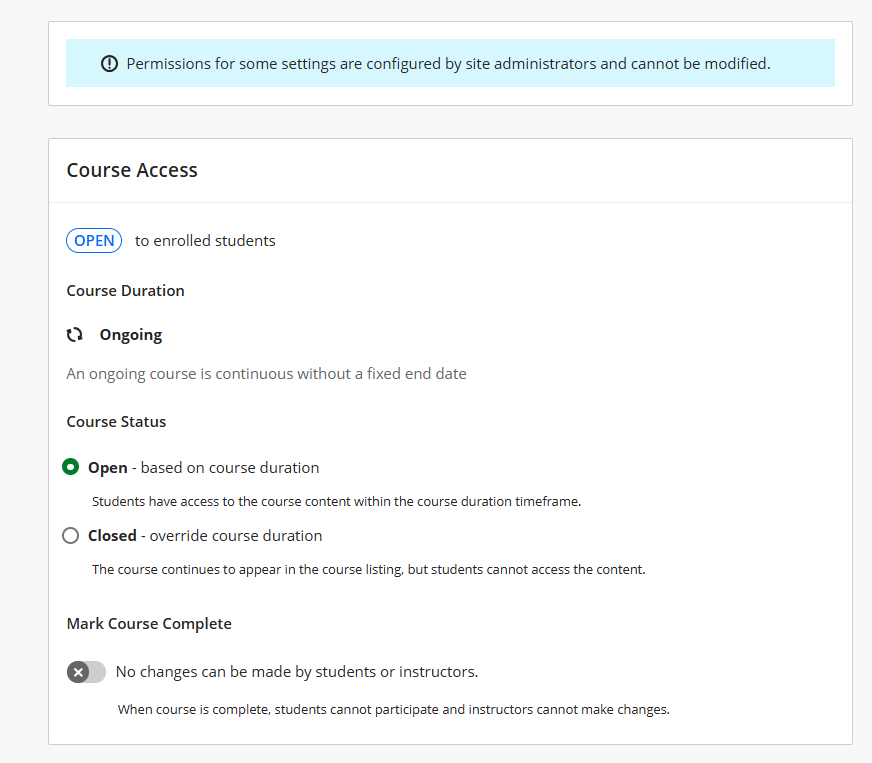
When the course is over, you can mark it Complete. This will close the course for participation. You and your students will still be able to access the course, but will not be able to make any changes.
Was this article helpful?
That’s Great!
Thank you for your feedback
Sorry! We couldn't be helpful
Thank you for your feedback
Feedback sent
We appreciate your effort and will try to fix the article