How To Download A Google Doc As A Word Document
You can download any Google Doc as a Word document using the built-in tools inside Google Docs. Follow the steps below to save your file in DOCX format.
Step 1: Open Your Google Doc
- Go to Google Docs and sign in to your Google account.
- Open the document you want to convert.
- Confirm that the file loads properly before exporting it.
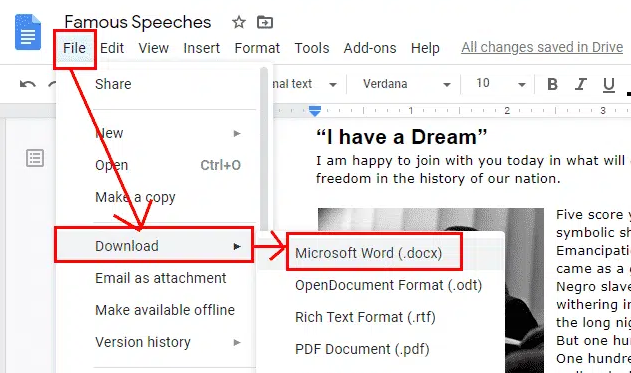
Step 2: Click The File Menu
- Select File in the top-left corner of the Google Docs toolbar.
- Wait for the dropdown menu to appear.
Step 3: Choose The Download Option
- Hover over Download in the File menu.
- Look for the list of available export formats.
- Click Microsoft Word (.docx) from the download options.
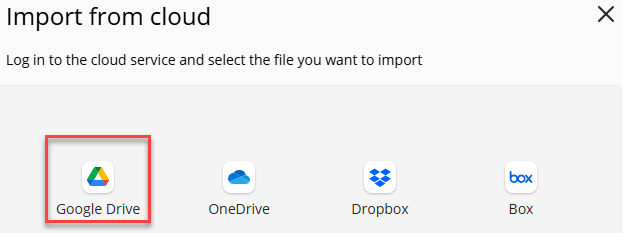
When an assignment in Blackboard requires a file submission, many instructors prefer that you attach a file rather than submit a shared link. If your document is stored in Google Drive, you can easily attach it by selecting the Upload from Cloud option when submitting your assignment. For step-by-step instructions on attaching a document, see the article titled "Adding a document to your submission".
Was this article helpful?
That’s Great!
Thank you for your feedback
Sorry! We couldn't be helpful
Thank you for your feedback
Feedback sent
We appreciate your effort and will try to fix the article