Form (Survey) Results
The Survey tool in Blackboard is called Form.
A Form (survey) can be set up as a graded activity or non-graded activity. It can be anonymous, or identifiable.
The process for downloading the results is the same. Every Form (survey) will have an entry in the gradebook - even if it is not graded
Go to either the Gradeable Items view or the Grade view of the gradebook.
Gradeable Items
- Find the enttry for the form and click on the three dots to the right
- Click the Download Results link.

- Most people will choose to download an Excel file, By Student, and All Attempts.
- You can adjust the download settings if needed.
- The results are an Excel file with data that you can use to report aggregated survey data.
Grid View
You can also access the Download Results link from the Grid View of the gradebook.
- Click on the icon in the column header
- Click on the Download Results link
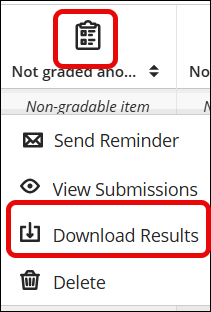
You will have the same options that are available in the Gradeable Items View
Was this article helpful?
That’s Great!
Thank you for your feedback
Sorry! We couldn't be helpful
Thank you for your feedback
Feedback sent
We appreciate your effort and will try to fix the article