Here's a brief video that will show you how to navigate a Blackboard Ultra course:
You will spend most of your time in the main Course Content section, which takes up most of the screen on the right.
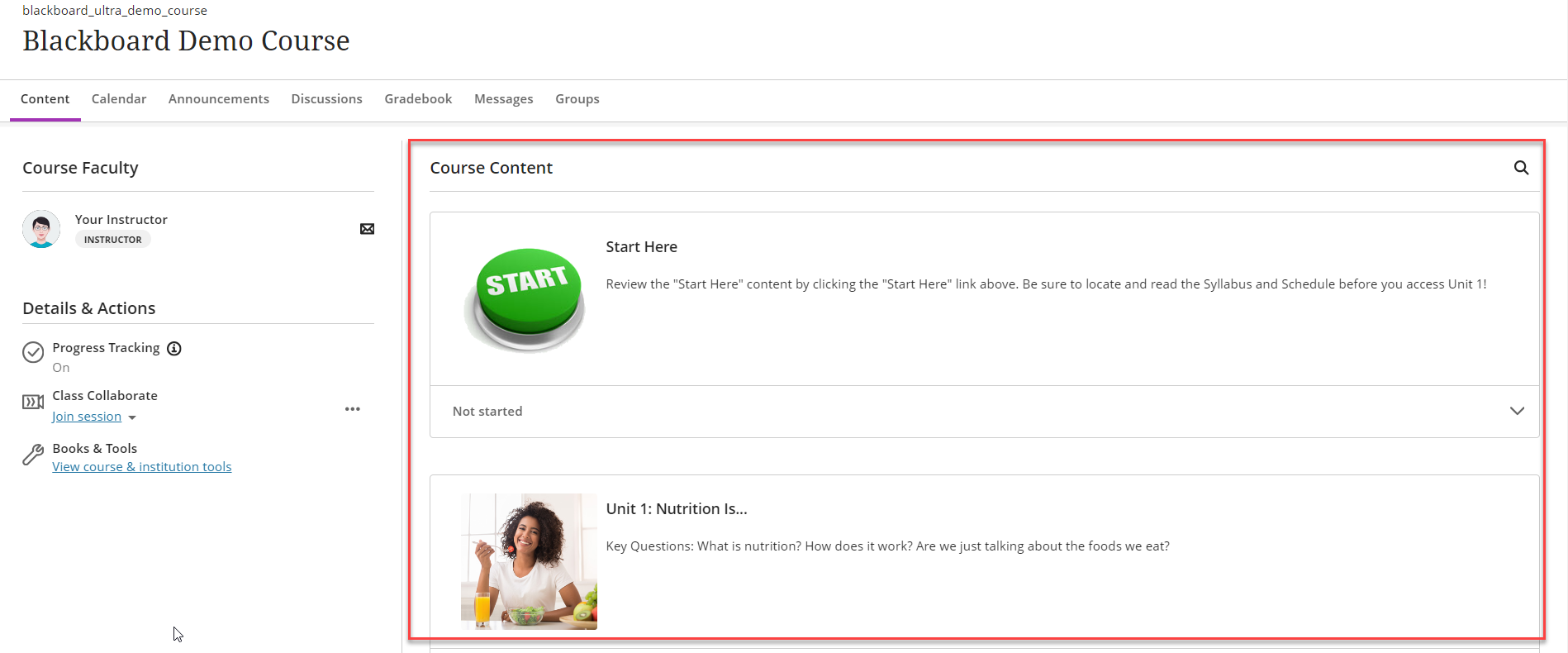
Course Content is divided into Learning Modules and Folders. You can use the chevron on the right to collapse and expand Learning Modules and Folders. You can also click on the title to do that.
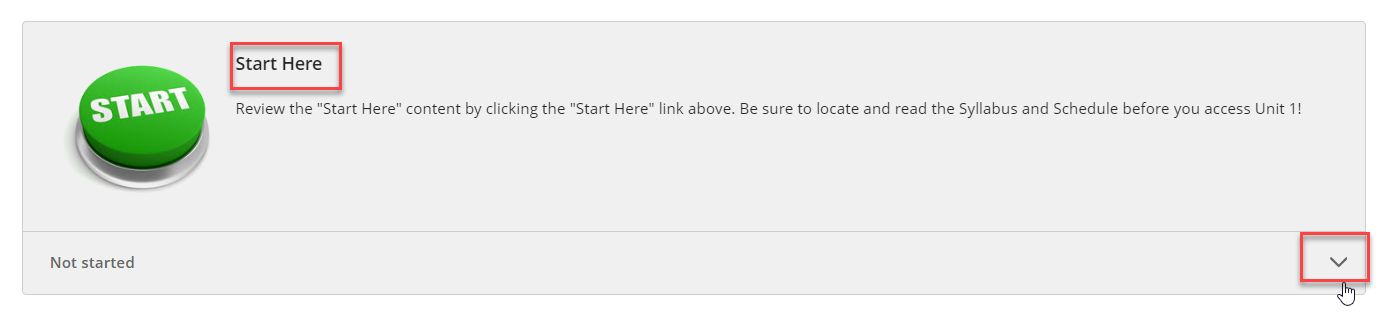
When you open a Learning Module or a Folder, you'll see your course materials.
A document will have an icon that looks like a piece of paper. A link will have an icon that looks like a link in a chain. A quiz, test, or assignment will have an icon that looks like a piece of paper with checkboxes. A discussion board will have an icon that looks like two conversation bubbles.
| Type of Item | Icon |
|---|---|
| Document |  |
| Link |  |
| Assessment (quiz, test, or assignment) |  |
| Discussion Board |  |
Documents
When you open a document in Blackboard Ultra, you can use the arrows at the top of the page to navigate to the next and previous items:

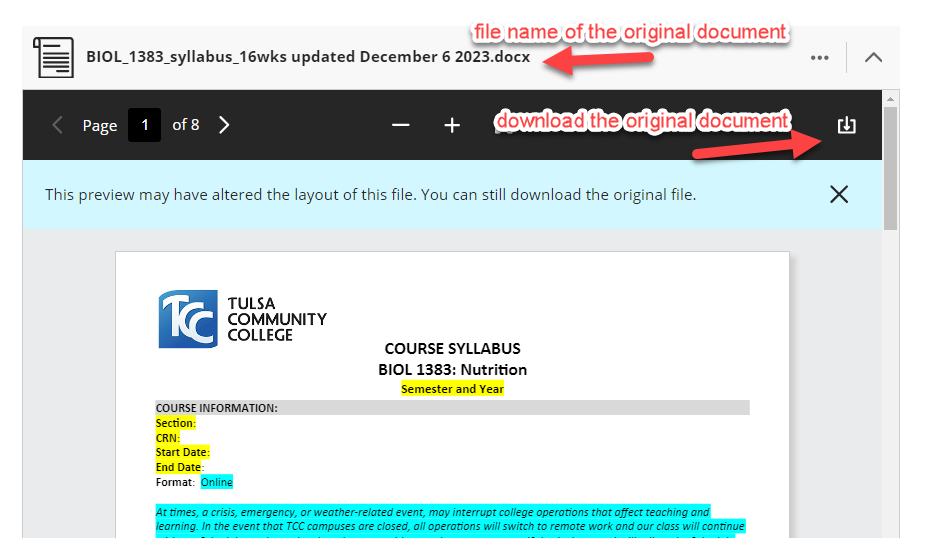
The document itself will open in a preview window. If you want to download the original document, use the download icon at the top right of the black bar:
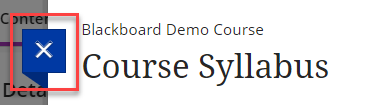
You can close the document (or any item in Ultra) by clicking on the X in the blue box at the top left of the window:
Links
When you open a link in an Ultra course, it will open in a new browser tab. To go back to your Blackboard course, you can close the new tab or just click back on the tab where Blackboard is open.
Assessments
Assessments include Quizzes, Tests, and Assignments. When you open an Assessment, a window will open on the right side of your screen. It will show you the due date, how many attempts you are allowed, and the maximum points. There is a button at the bottom labeled Start attempt.
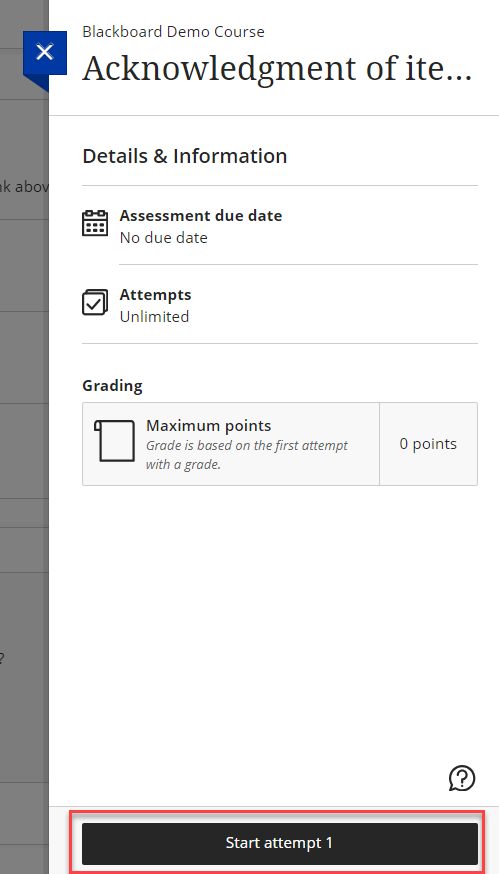
NOTE: For some Assessments, clicking the Start attempt button is the only way to view the instructions for the Assessment. Your attempt will not be recorded until you submit it.
Discussion Boards
When you open a Discussion Board,
Was this article helpful?
That’s Great!
Thank you for your feedback
Sorry! We couldn't be helpful
Thank you for your feedback
Feedback sent
We appreciate your effort and will try to fix the article