When you open a Learning Module, a collapsible table of contents is displayed on the side panel of your screen. This panel shows all the content items in the Learning Module and is similar to what students see.
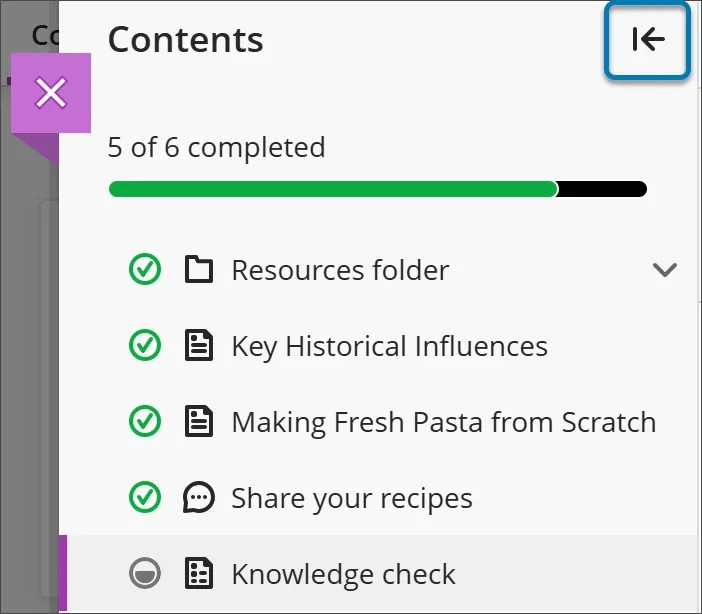
- Select any item in the table of contents panel to open it directly. Keep in mind that in the student view, students can't see items that are behind a forced sequence or have not been made available to them.
- If you want to hide the table of contents, select the arrow button at the top corner of the table of contents.
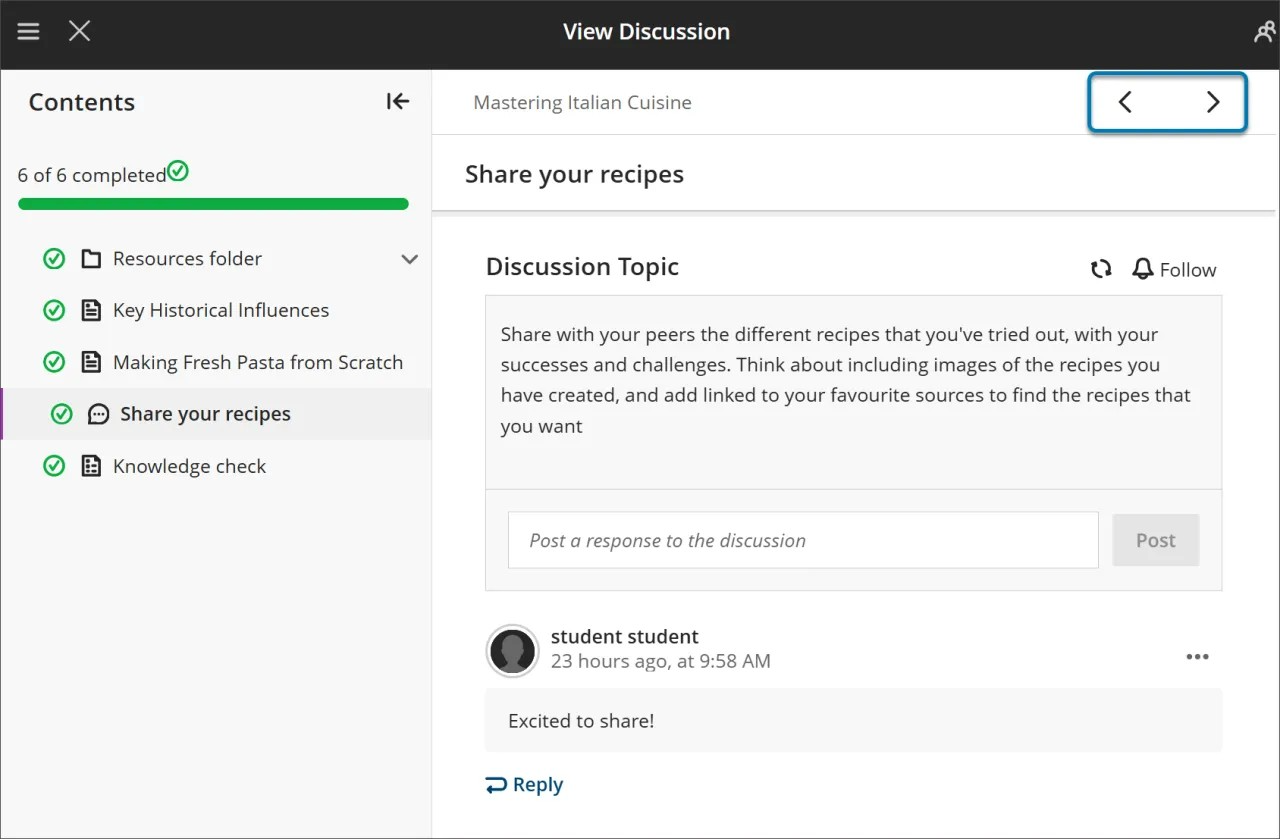
- Use the Next and Previous buttons at the top right to move through content in order.
- If you have initiated forced sequence, students may notice the next item is locked. They’ll need to meet certain conditions before Next and the next item in the Table of Content menu become available. They can still revisit any previously unlocked items.
Was this article helpful?
That’s Great!
Thank you for your feedback
Sorry! We couldn't be helpful
Thank you for your feedback
Feedback sent
We appreciate your effort and will try to fix the article