Assessment Results
Submission View is Hidden
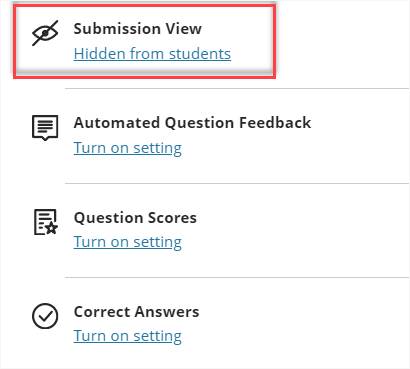
After completing an assessment with self-grading questions, the student can view their grade in the gradebook. If they click the link to open the quiz/test, they see that the submission is hidden.
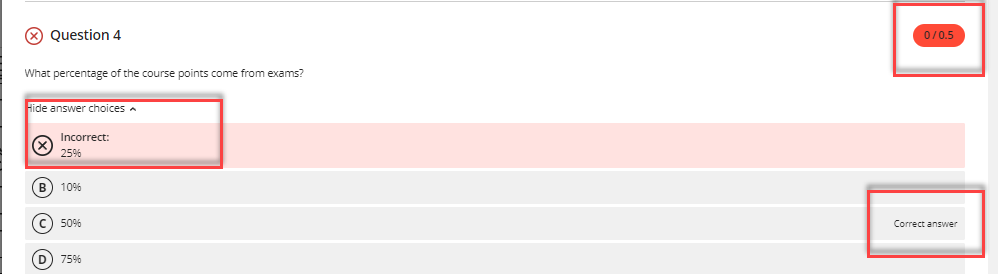
Allow Students to view their Submission (After Submission) All other options deselected.
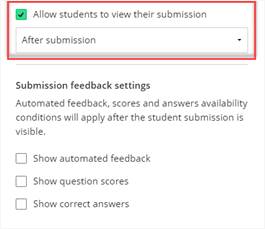
After completing an assessment with self-grading questions, the student can view their grade in the gradebook. If they click on the attempt, they see the questions and their answer. They cannot see their score for each question, and there is no indication of which answer choices are correct.
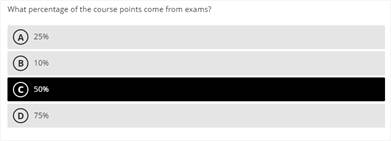
The instructor has the option of changing when the students can see their score
- after submission
- after theindividual grade is posted
- after due date
- after all student grades are posted
- on a specific date
- one-time
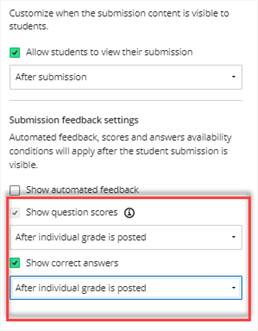
Once you enable Allow students to view their submissions, you can use the other settings to allow students to see how they scored on each question and, if desired, what the correct answer is. You have options to determine when the student will see this additional feedback
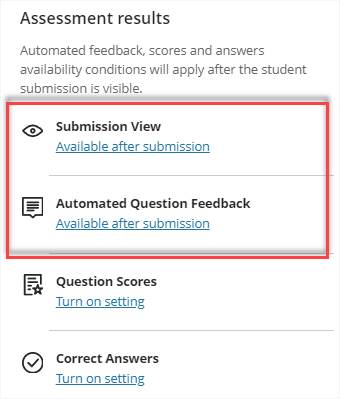
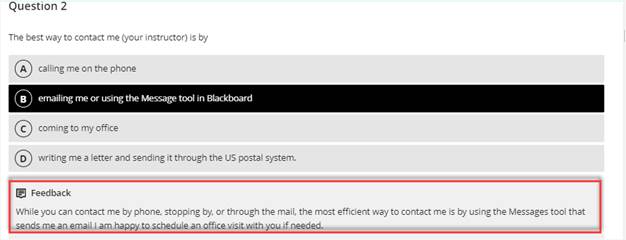
Automated Question Feedback
If you have Submission View enabled, you have options to set Automated Question Feedback. You enable this option if you want students to see general feedback for each question. If you don’t have automatic feedback in place, you don’t need this option enabled.
Show Question Scores
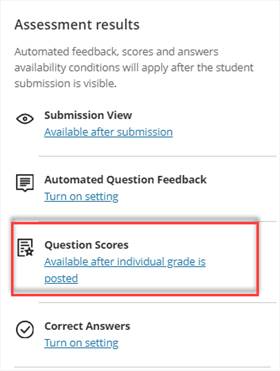
Submission view must be available before you can enable question scores.
If you select this option, students can view the answer they entered for each question and the number of points they earned.
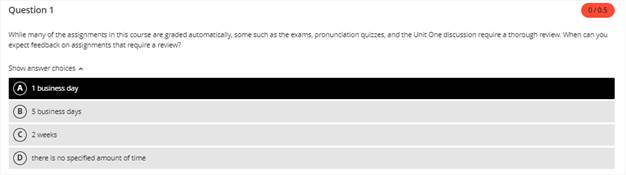
The instructor has the option of changing when the students can see this feedback
- after the student takes the test and the grade is posted (after individual grade is posted submission)
- after the due date
- after all student grades are posted
- on a specific date
Correct Answers
Submission view must be enabled before you can select question scores. If you select this option Show questions scores will automatically be selected.
Students can see what answer they entered for each question, how many points they earned, and the correct answer.
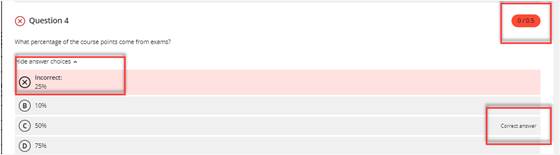
The instructor has the option of changing when the students can see this feedback
- after the student takes the test and the grade is posted (after individual grade is posted submission)
- after the due date
- after all student grades are posted
- on a specific date
Was this article helpful?
That’s Great!
Thank you for your feedback
Sorry! We couldn't be helpful
Thank you for your feedback
Feedback sent
We appreciate your effort and will try to fix the article